Have you ever spent way too long scrolling through Etsy or Teachers Pay Teachers looking for the perfect bulletin board letters, only to realize that nothing is quite right for your theme or the colors you want?
That was me three weeks before school started, sitting on my couch with coffee in hand, clicking through hundreds of listings and feeling that creeping panic. Then I thought to myself, can I make bulletin board letters on Canva? Of course I can! And honestly, it was one of those why-didn’t-I-do-this-sooner moments.
If you’ve ever wondered how to make bulletin board letters that actually match your theme and still pop on your board, Canva makes it surprisingly easy. One simple trick that makes a huge difference is adding a white border around the letters so they stand out, and I’ll show you exactly how to do that step-by-step.
Prefer to watch instead of read? You can watch the full video here.
Table of Contents
How to Make Bulletin Board Letters in Canva
Start With a Custom Size
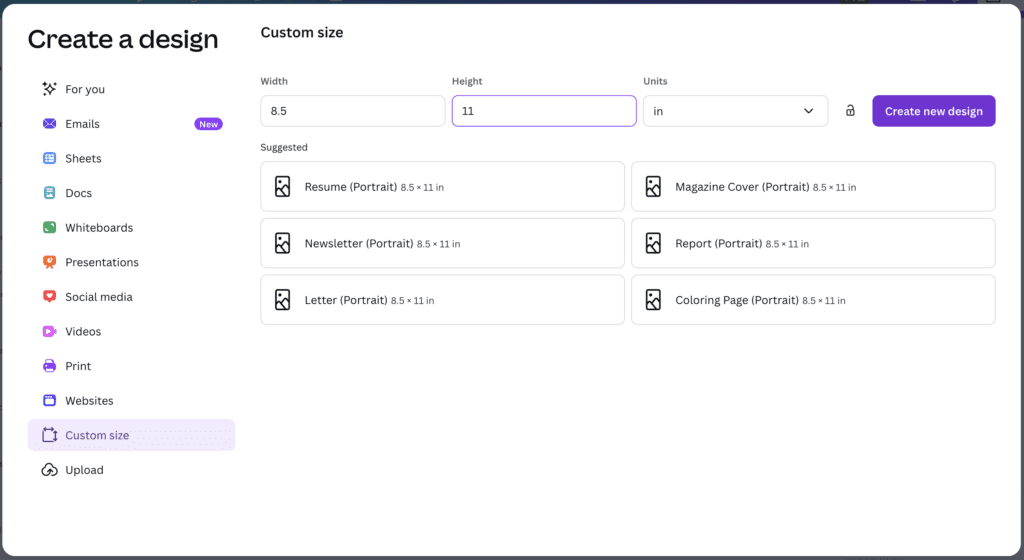
First, click the Create button and choose a custom size. You want it to match the size of the paper you’ll be printing on.
Tip: Choose the Units before inputting your numbers.
From there, click Text and choose a font that is big, bold, and easy to read.
What Fonts Do You Use for Bulletin Board Letters?
The ideal font will be big, bold and easy to read.
My favorite print fonts are:
My favorite cursive fonts are
HOnestly there are so many wonderful fonts. My favorite font artists are the ones listed above: Kaitlynn Albani, Amy Groesbeck, Amanda Newsome A Perfect Blend and Golly Miss Mollie
Choose the Right Font and Size
Can I Use Custom Fonts?
If you have a font you love that isn’t in Canva, you can upload it. Go to Brand Kit, click Fonts, click Edit, scroll to the bottom to look for Manage Uploaded Fonts, click Add New at the top, and select the font file from your computer. Once it’s in your font folder, it’s available to use in all your designs.
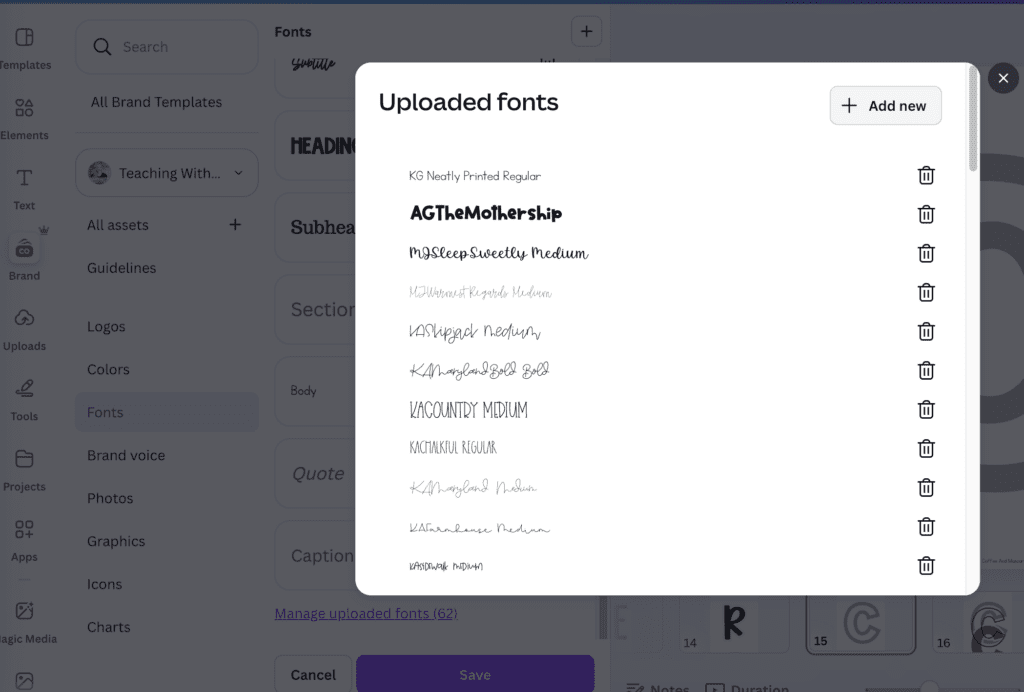
This step completely opened up my options. I wasn’t stuck using the same fonts everyone else was using, and I could match my classroom decor exactly.
Test Letters Before You Commit
Before typing every letter out, start by typing the letters M and W. If those fit nicely on the page, the rest will too. Once you’re happy with the font and size, then type out the letters you actually need, or even the entire alphabet if you want it ready to go.
What Size Font Do You Use?
You might be wondering what size font do you use for bulletin board letters? Before type everything out, use a rectangle shape to check letter height. Make the rectangle the exact height you want your letters to be, then adjust your first letter to match.
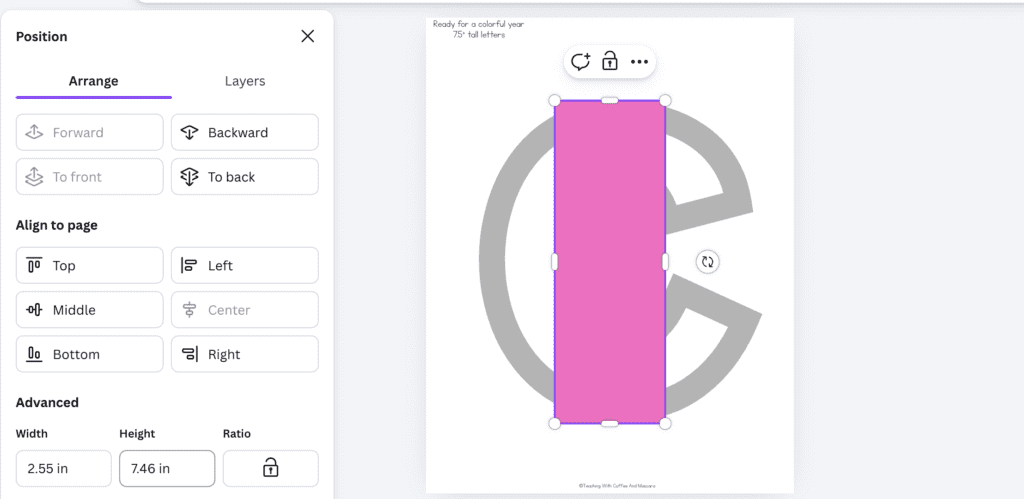
Doing this at the very beginning saves so much time later because all of your letters will already be the same size.
The font size does depend on the font. I usually start with about 600-700 if I want the letter to take up an entire page. From there I use the rectangle trick to make the letters the exact height I want and decrease or increase the font size until it’s just right.
How to Add Borders to Letters in Canva
Layering for Clean Cut Lines
Layer 1 (bottom layer):
Once your letter size is set, duplicate the letter and change the color to a light gray. Click Effects, choose Hollow, and set the thickness to 100. This will be your cut line layer.
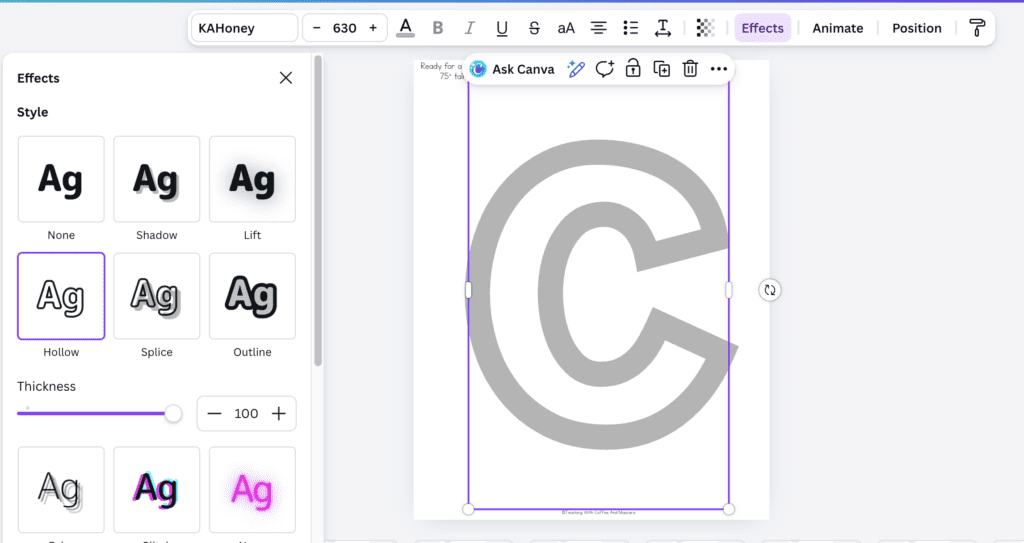
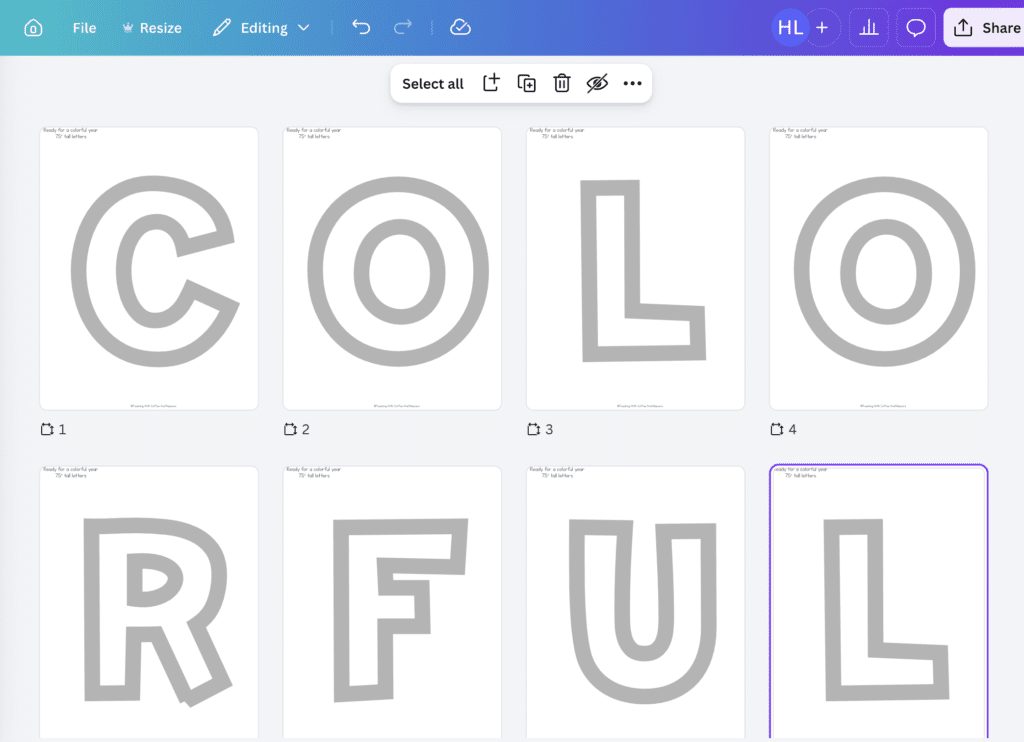
Duplicate your letters one layer at a time. It makes the whole process much easier. For example, these are all my letters with step 1 done. I’ll add the next step to each letter at the same time.
Layer 2 (middle layer):
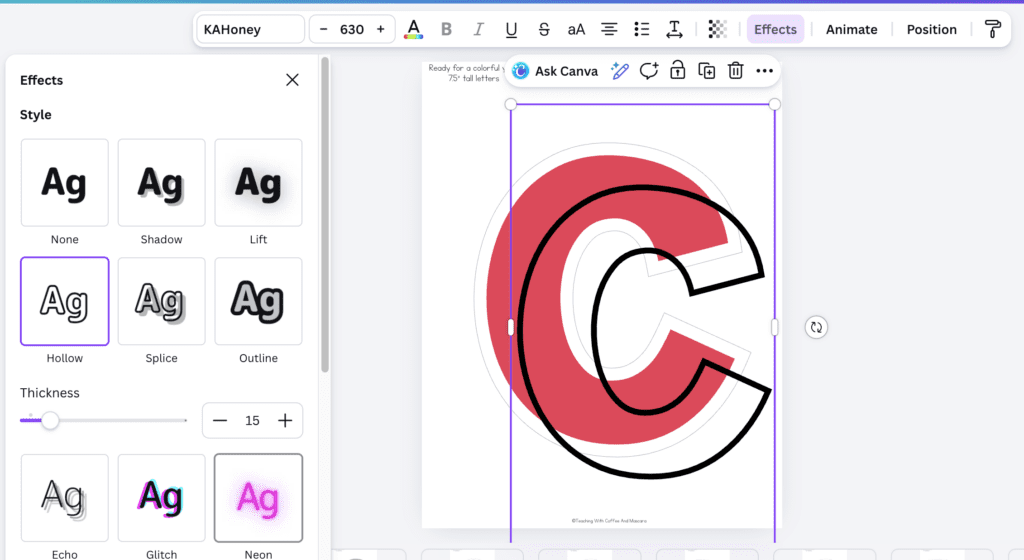
Next, copy and paste again and change the letter to your main color. Go back to Effects, choose Outline, set the outline color to white, and adjust the thickness to around 43.
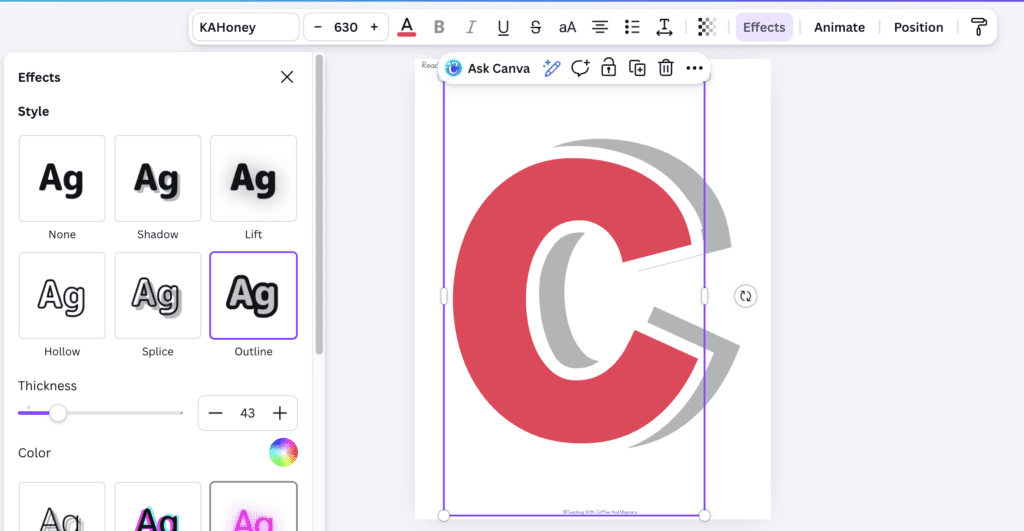
Layer 3 (top layer):
Then add one more layer by duplicating again, changing the effect to Hollow in the color black, and setting the thickness to about 15. Center it perfectly over the letters. This creates a clean, bold outline that makes your letters pop on any background, even busy or patterned bulletin boards.
Download and Print Your Letters
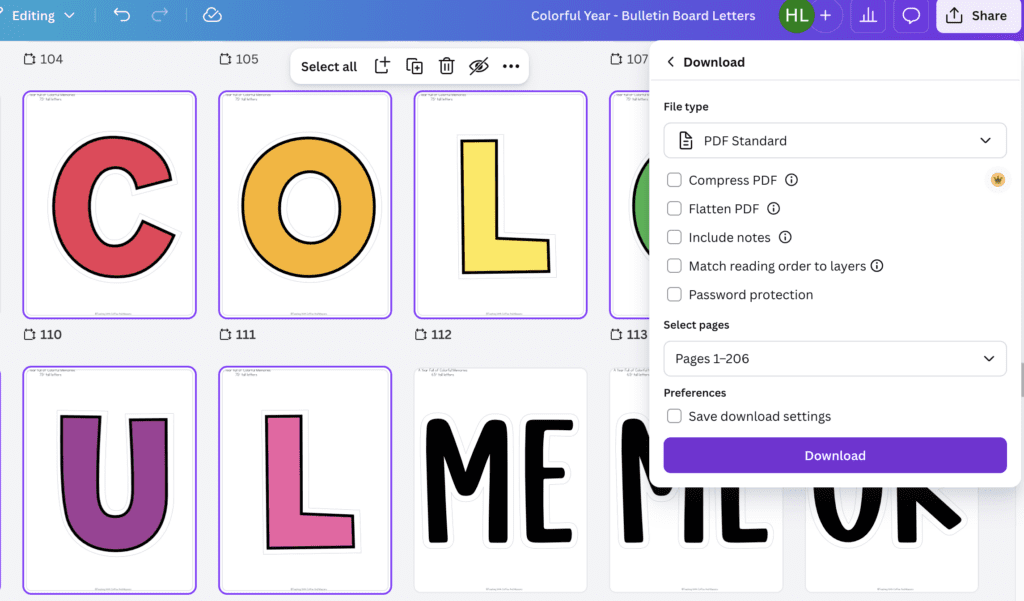
When you’re ready to print, click Share, then Download, choose PDF Print, and download the file. Open the PDF, print on regular paper, cut out your letters, and you’re ready to put your bulletin board together.
Final Thoughts On How to Make Bulletin Board Letters in Canva
That’s how I went from endless scrolling and font frustration to having exactly what I wanted for my classroom. Making your own bulletin board letters in Canva isn’t just easy. It’s actually kind of fun once you know these tricks.
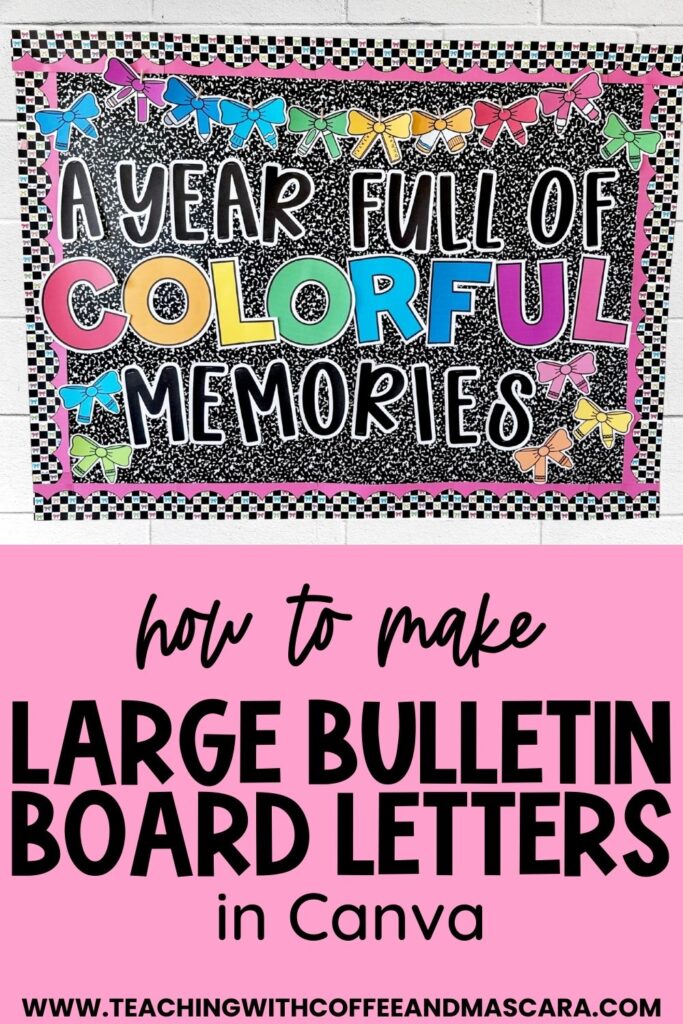
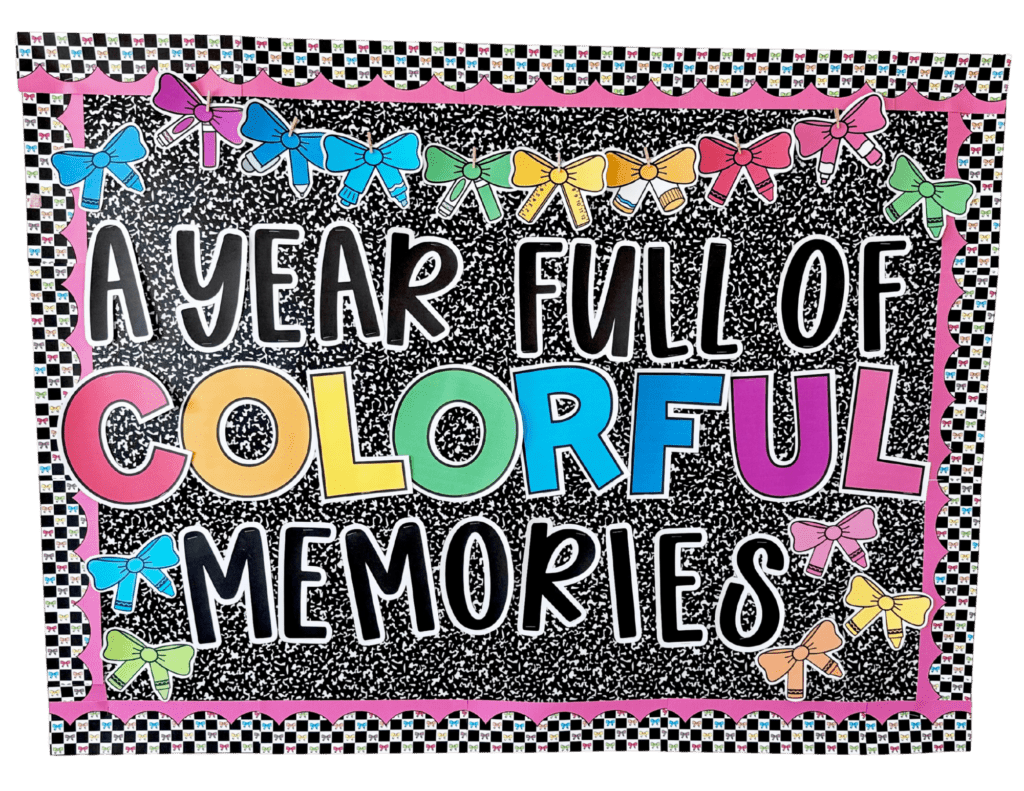
Then you can make a bulletin board like this Back to School Bow Bulletin Board I made! Once you learn how to make bulletin board letters in Canva, it becomes one of those quick classroom tricks you’ll use over and over again.
For more ways to use Canva in your classroom, check out these posts:
Save These Canva Bulletin Board Letter Tips
Save this post so you can come back to these Canva tips when you’re creating bulletin board letters for back to school or anytime during the year. Just pin it to one of your favorite classroom decor boards on Pinterest. That way it’s right there when you need bold, printable letters without starting from scratch.