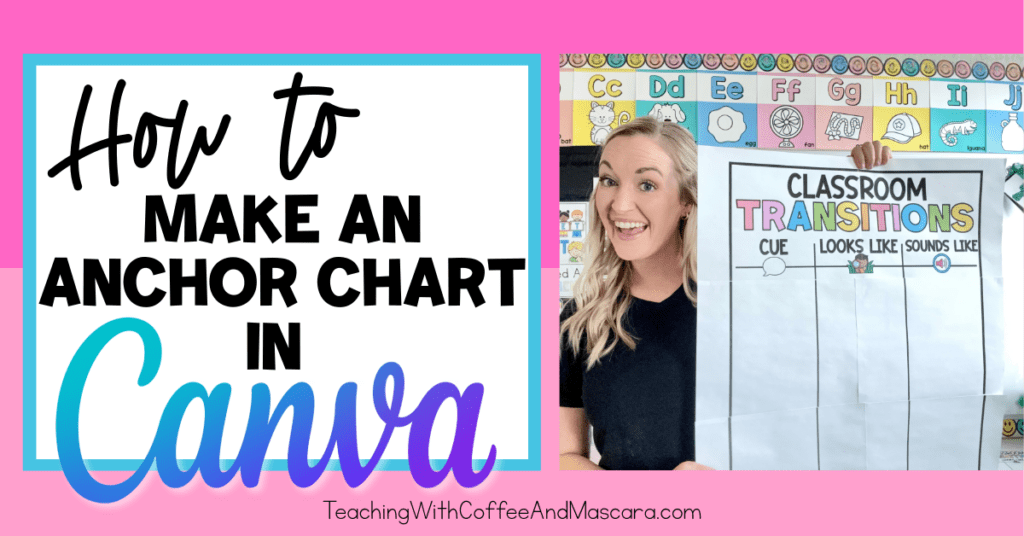
You’ve tried glancing at the photos on Pinterest, determined to make your anchor chart as pretty as the ones you see on Instagram. And then you finish… and think, well, at least only me and the kids are going to see this.
If you’ve ever hoped none of your teammates walk in because of the anchor chart hanging on your wall, this one’s for you. Today, I’m walking you through how to make an anchor chart on Canva that doesn’t leave you regretting all of your life choices. As a bonus, you can print it on 8.5 x 11 paper for your students so they can fill it in alongside you.
Prefer to watch instead of read? You can watch the full video here.
Table of Contents
Why Making Anchor Charts by Hand Is Frustrating
Let’s be honest. Anchor charts look simple until you’re standing there with a marker and no undo button. Spacing gets weird, handwriting changes halfway through, and suddenly the chart looks nothing like what you had in your head or on that anchor chart template.
That’s where Canva comes in to save the day.
Why I Use Canva for Anchor Charts
Canva lets you design exactly what you want without committing to it forever. You can change fonts, colors, spacing, and layouts until it actually looks good. You can also reuse the same chart for multiple classes or print smaller versions for students.
Step-by-Step: How to Make an Anchor Chart in Canva
Setting Up Your Canva Design
First, go to canva.com. If you don’t have an account, you’ll want to sign up. It’s free for educators!
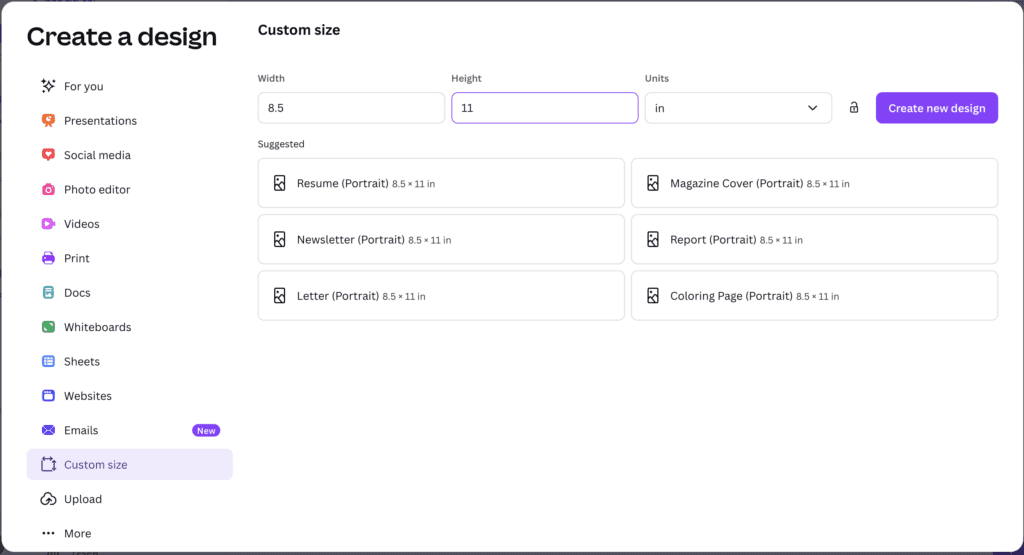
Once you’re in, go to Custom Size. I like this option because it makes it easier to create exactly what I need.
- Change the units to inches
- Set the size to 8.5 x 11
- Click Create New Design
Adding Your Title and Text
The first thing I always do is add a title. For this example, I’m making a KWL anchor chart.
- Click Text
- Add a text box
- Make it large
- Choose a font you like
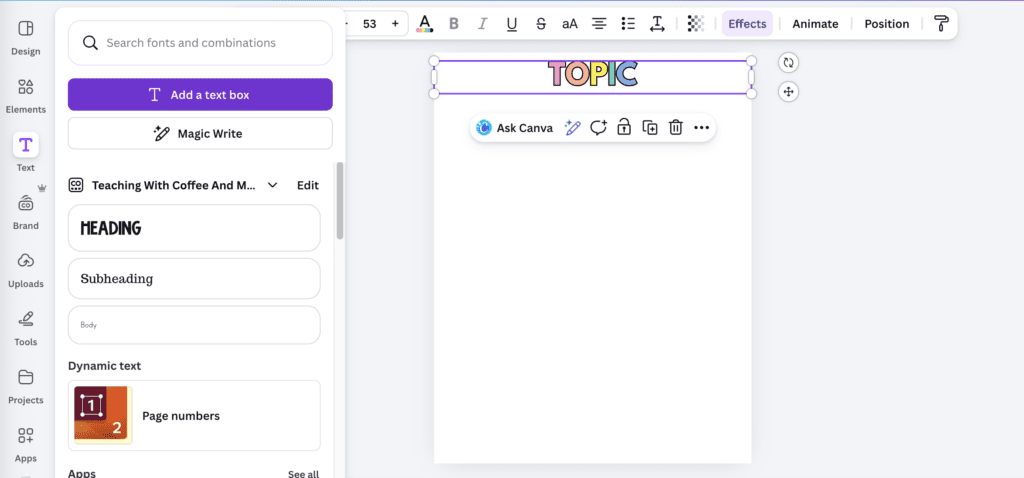
You can upload your own fonts or use Canva’s. I already have fonts I love, but for this, using a Canva font works just fine.
Type in your topic. You can change colors, add effects, or outline the text. I like adding a simple black outline (under effects).
Once your title looks how you want, duplicate it. That way you don’t have to reselect the font and settings every time.
Lining Everything Up
When you move elements around, you’ll see purple lines pop up. Those show when items are centered or aligned, which is exactly what you want.
To keep things evenly spaced:
- Highlight the elements
- Use Space Evenly
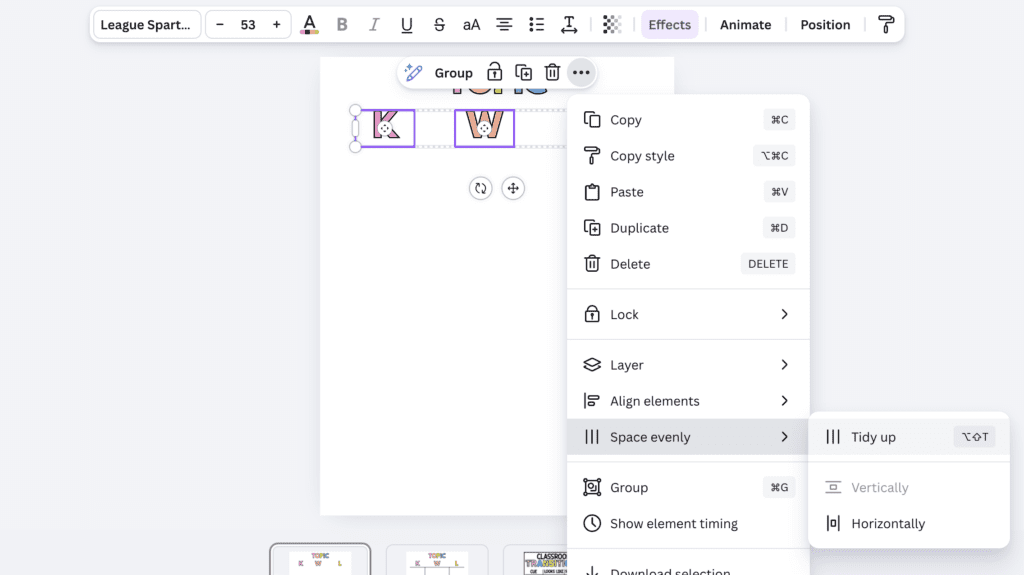
This saves a lot of eyeballing and guessing.
Adding Lines and Visuals
You can add decorative or straight lines depending on the look you want.
You can also add elements or images. For example, if your topic is an animal, you can add a photo or graphic. Canva makes this easy.
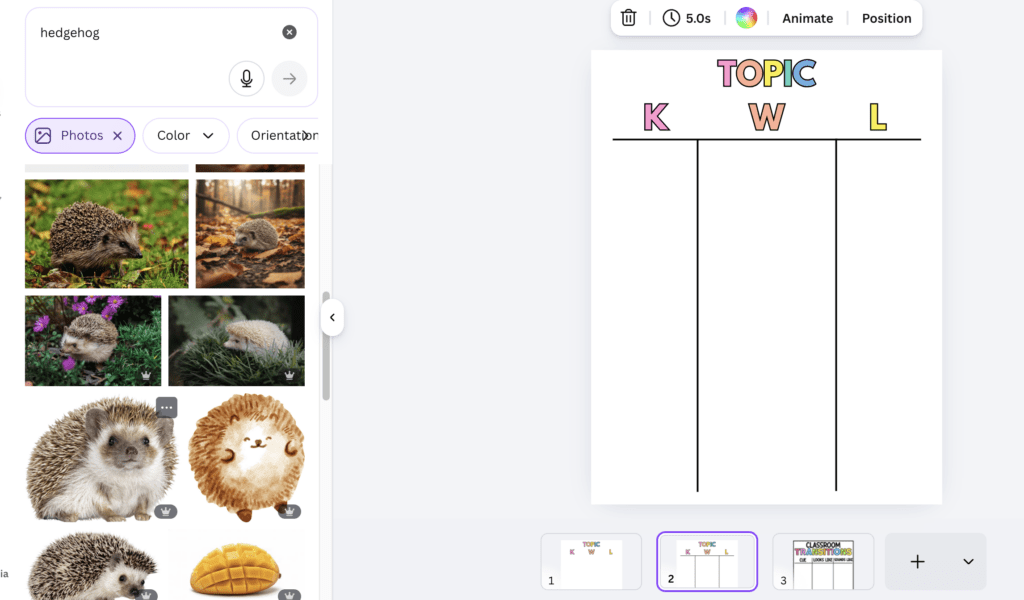
If you see a little crown icon, that means it’s a Pro element. Teachers can currently get Canva Pro for free, or you can pay to use a single image if needed.
How to Download and Use Your Anchor Chart
Printing Options
Once your anchor chart looks exactly how you want it:
- Click Share
- Click Download
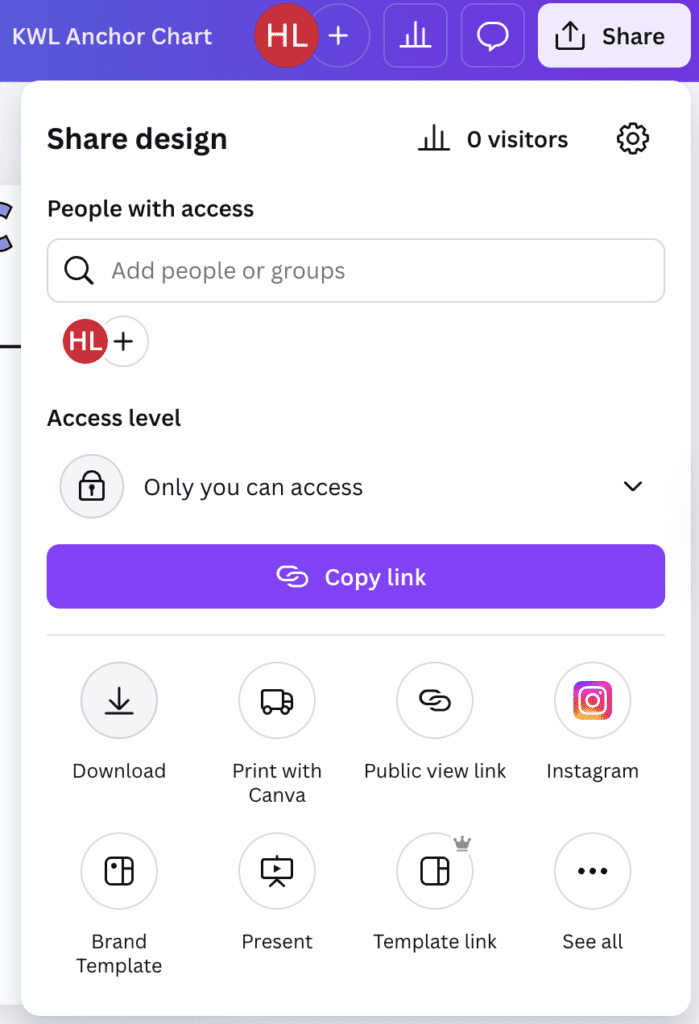
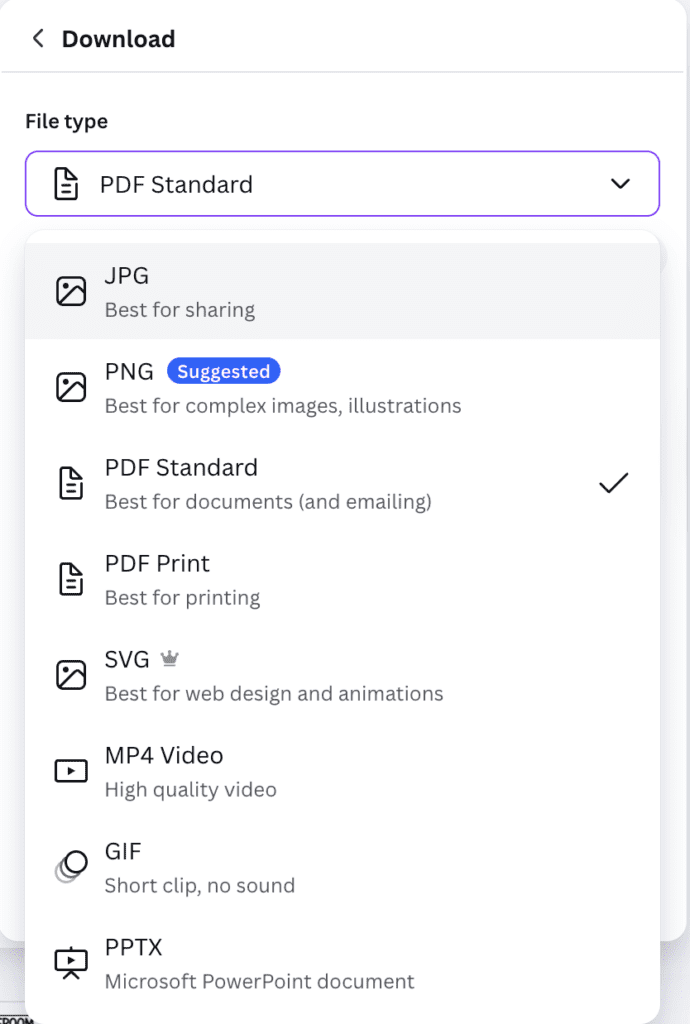
You have a few options to choose from when deciding what format you want to download:
- PDF: Best if you’re printing using Adobe Acrobat
- JPEG: Needed if you’re printing with a different software or sending it to a printing company
If you’re just projecting it on your board to trace, you don’t need to download it at all.
Projecting or Tracing Your Chart
You can simply project the anchor chart onto your board and trace it. This is especially helpful if you want a large chart without printing anything.
If you’re printing small versions for students, choose PDF Standard.
How to Turn an 8.5 x 11 Anchor Chart Into a Poster
If you’re wondering how to turn your finished chart into poster size, this post walks you through how to take an 8.5 x 11 PDF and turn it into a full-size anchor chart using Canva.
Final Thoughts on Using Canva to Create an Anchor Chart
Canva takes a lot of the stress out of making anchor charts. You get control over how it looks, you can reuse it year after year, and you can easily create student versions to follow along with you.
For more classroom diy tutorials, check out these posts:
Reduce the Size of Something You Want to Print
Save This Tutorial on How to Create An Anchor Chart in Canva
Save this post so you can come back to this diy anchor chart on Canva whenever you need them! Just pin it to one of your favorite teaching boards on Pinterest. That way it’s right there when you’re looking for how to create your own anchor chart.