I don’t know if you’ve noticed, but Adobe has started charging for their poster feature, which is really unfortunate because I love making posters and anchor charts big for my classroom. I wasn’t about to pay for something I knew I could DIY for free.
So I went digging for a better way to print PDFs as a poster on multiple pages, and when I figured out how to do it right inside of Canva for free, I knew I had to share. Canva has basically become every teacher’s happy place. It’s easy to design in, and it’s free for educators.
Prefer to watch instead of read? You can watch the full video here.
Table of Contents
Stop Paying for Poster Tools
I love large visuals in my classroom from custom posters to anchor charts, but paying extra just to print something bigger didn’t make sense to me. Especially when I knew there had to be another way to print across multiple pages for free.
Once I realized I could do this entirely inside Canva, it was a no-brainer.
Why Canva Is the Better Option
Canva lets you design posters from scratch, upload files you already have, or use resources you’ve purchased elsewhere. Everything stays in one place, and you don’t need any premium tools to make it work. Plus the poster option is free.
Step-by-Step: Making a Large Poster in Canva
Step 1: Design or Upload Your File
First, create your poster or image inside Canva. If you already have one made somewhere else or you’ve purchased a resource, you can upload the PDF or image file directly into Canva.
Once it’s uploaded, you’re ready for the next step.
Step 2: Use the Image Splitter App
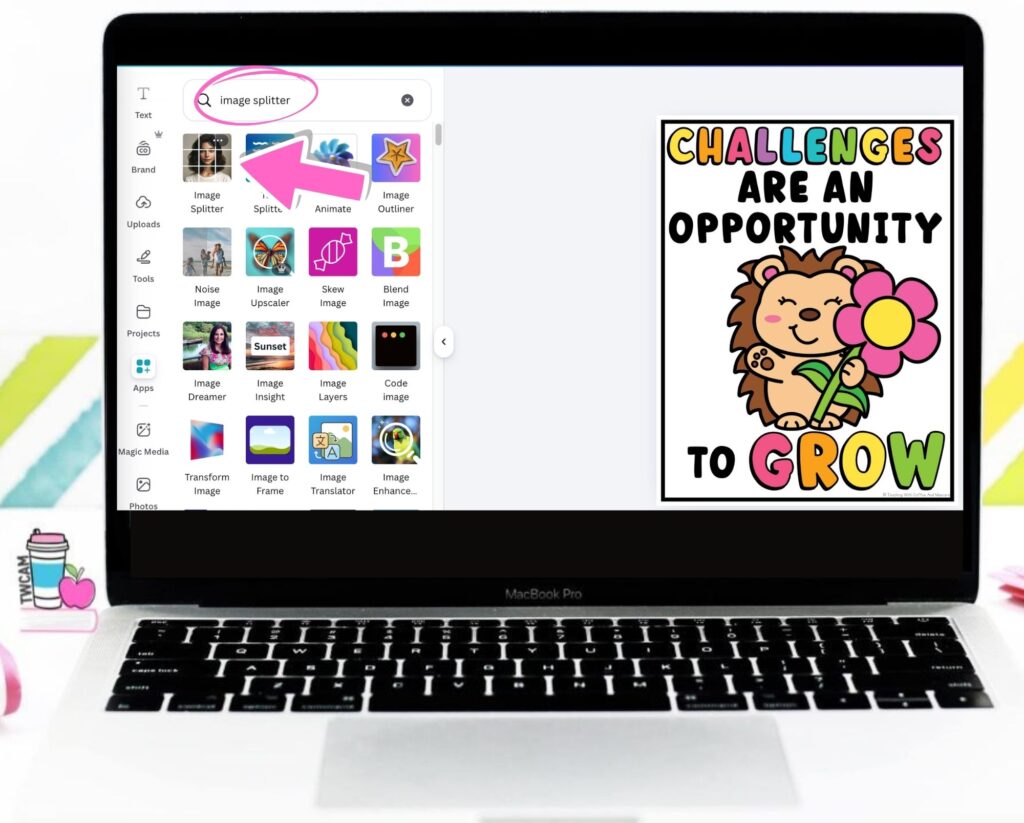
Click Apps on the left-hand side and search for Image Splitter.
When the tool opens, choose how many pages you want your poster to be. In this example, I used three pages wide by three pages tall. Then click Split Image.
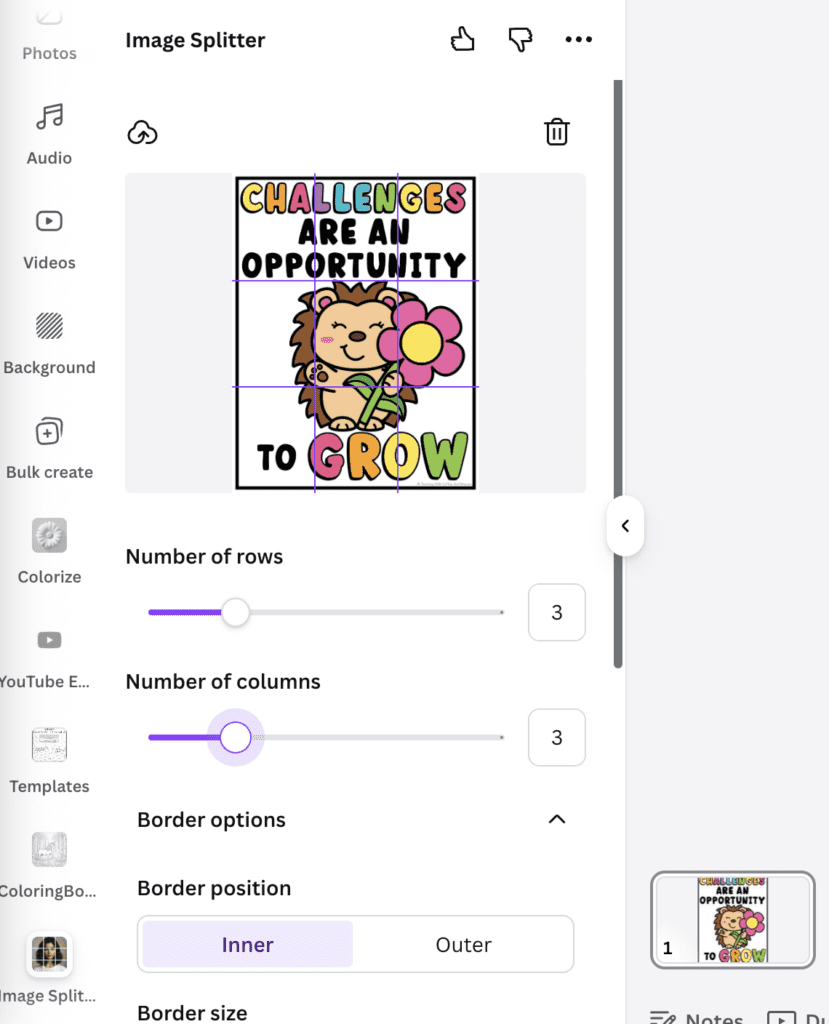
The next page will ask you what you want to do with those images, you’ll want to click Add images to new pages.
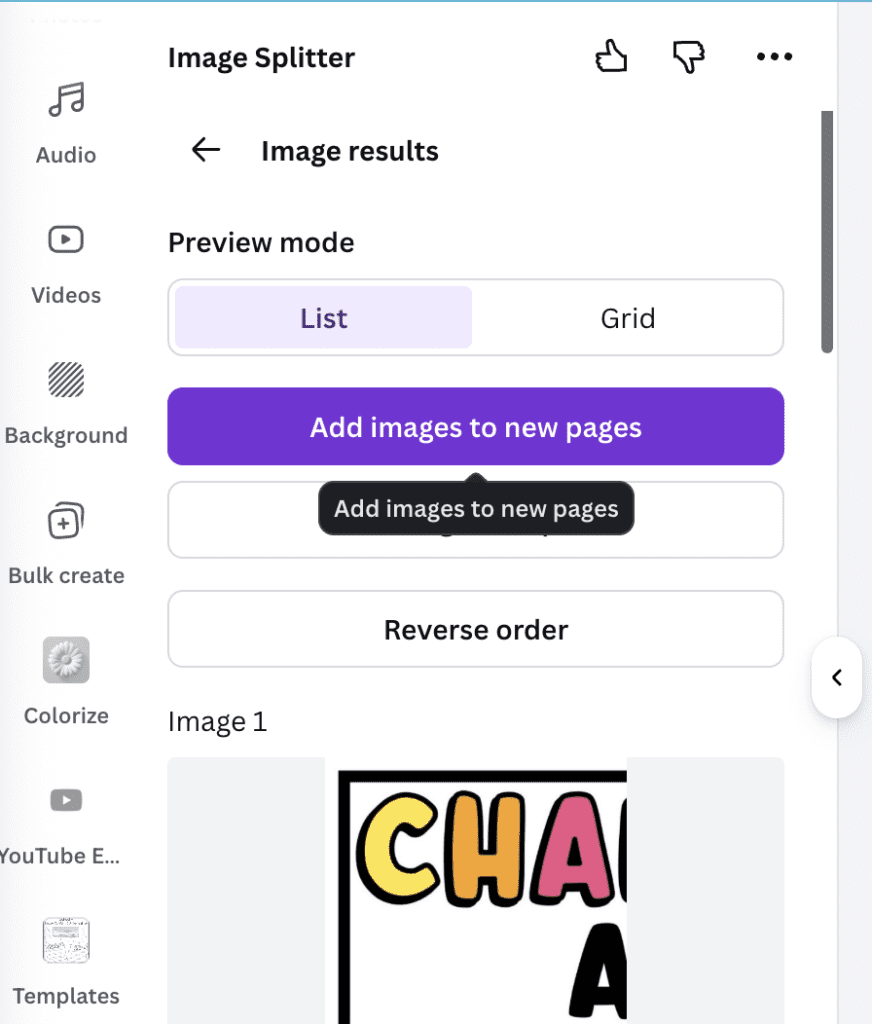
This feature is great because it makes each piece the same size and puts every image on its own page. No guessing and no extra adjusting.
Step 3: Download and Print
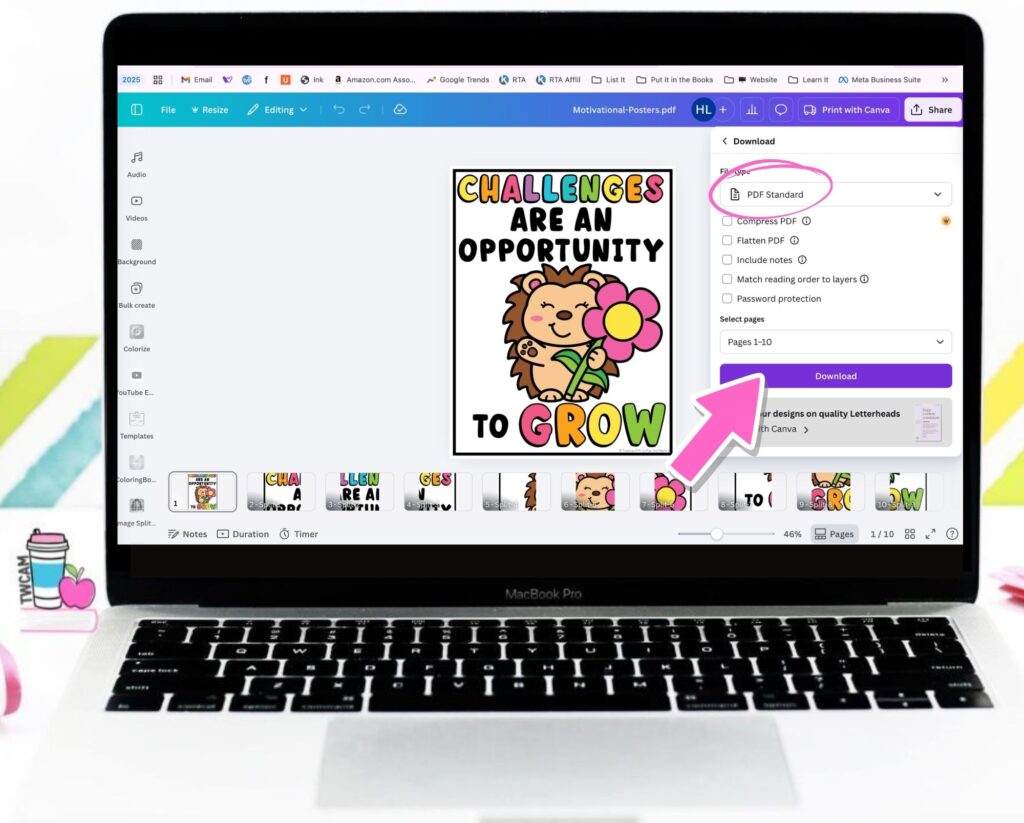
Once everything looks good, click Download and choose PDF Print. Open the downloaded PDF and print it on regular printer paper.
Putting Your Poster Together
After printing, trim the edges and glue or tape the pages together. I personally love using glue, especially wet glue, because you can move the pages around and line everything up until it’s just right.
Once it’s together, hang it up. Just like that, you’ve got a large, high-quality poster printed at home or at school for free!
PRO TIP: Don’t trim all the edges. You’ll want one side of the trim to be able to glue on. You can watch me trimming and piecing a poster together below.
Final Thoughts on Using Canva to Print On Multiple Pages
That’s it. A simple way to make big classroom posters using Canva and a regular printer.
No special equipment. No oversized printing fees. No waiting for shipping. Just you, a template or PDF, and a few clicks.
Now, when you need something specific for your classroom—an anchor chart, a poster, or a seasonal refresh—you can make it yourself in minutes.
For more classroom tutorials, check out these posts:
Save These Canva Poster Printing Steps
Save this post so you can come back to these simple steps for printing a poster in Canva whenever you need them. Just pin it to one of your favorite teaching boards on Pinterest. That way, the next time you’re ready to print a poster and want it sized correctly the first time, the step-by-step guide is right there waiting for you.