Even if you’ve been using Canva for years, you might not realize how many simple Canva hacks can completely change your life as a teacher.
Teachers love Canva almost as much as free coffee in the lounge. It’s free for educators, easy to use, and can totally change the way you prep lessons and resources. But today, I’m not sharing the same basic Canva tricks you’ve already heard.
These 10 Canva hacks for teachers are hacks you’ll love because you probably haven’t heard of them yet. They’re simple, practical, and classroom ready.
Prefer to watch instead of read? You can watch the full video here.
Table of Contents
Canva Hack #1: Instant Timers With The Click of a Button
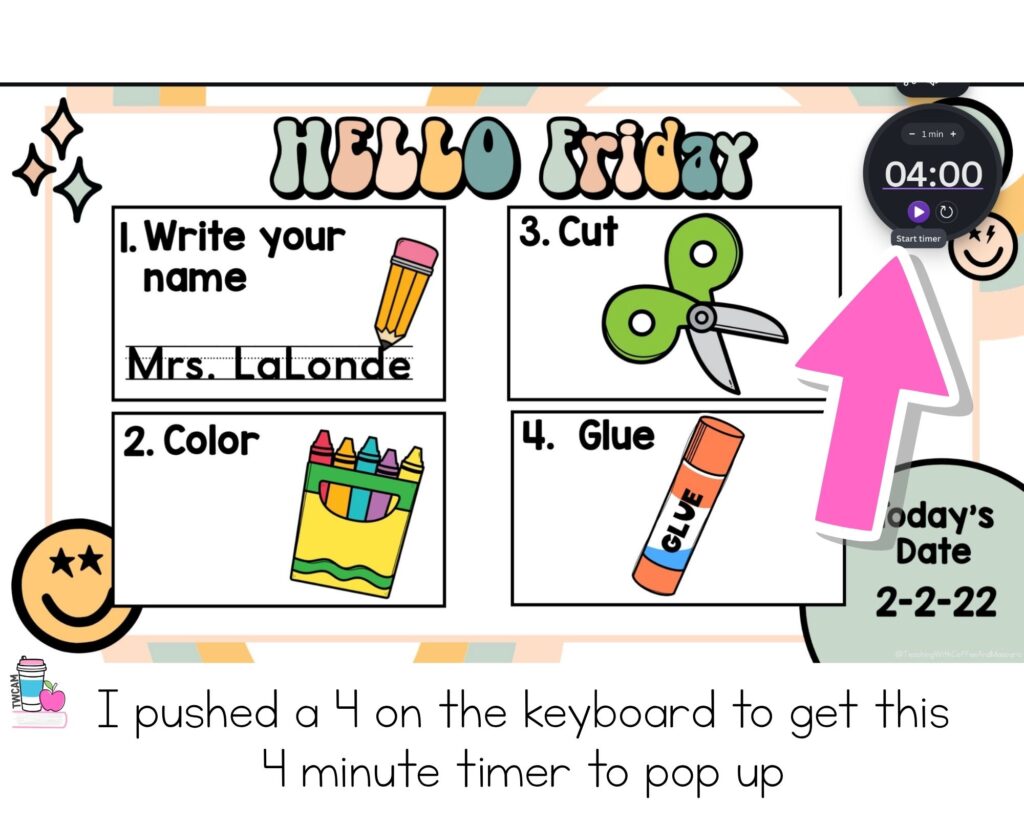
Did you know you can make a timer in Canva on any slide with just a push of a button?
Click any number from 0 to 9 and a timer will pop up. You can edit it quickly or type in the numbers if you need to adjust the time. It’s a total game changer for daily slides, especially when you don’t have time to add a separate timer.
Canva Hack #2: Posters Made Easy
If you need a classroom poster, you don’t need complicated software or to pay extra for poster features.
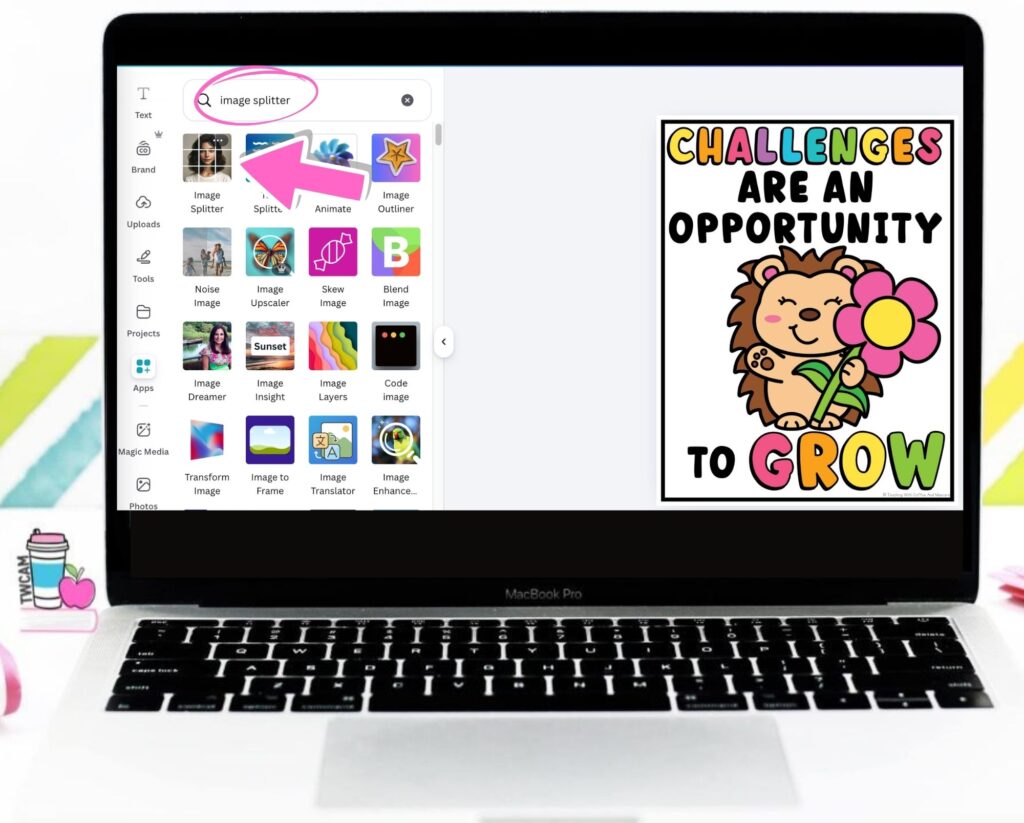
Set custom dimensions to 8.5 by 11, design your poster or drop in one you already purchased, then use an app called Image Splitter. Adjust the size, download, print, and you’re done. If that sounds easier said than done, you can follow step by step here in How to create a poster in Canva.
Canva Hack #3: Instant Coloring Pages
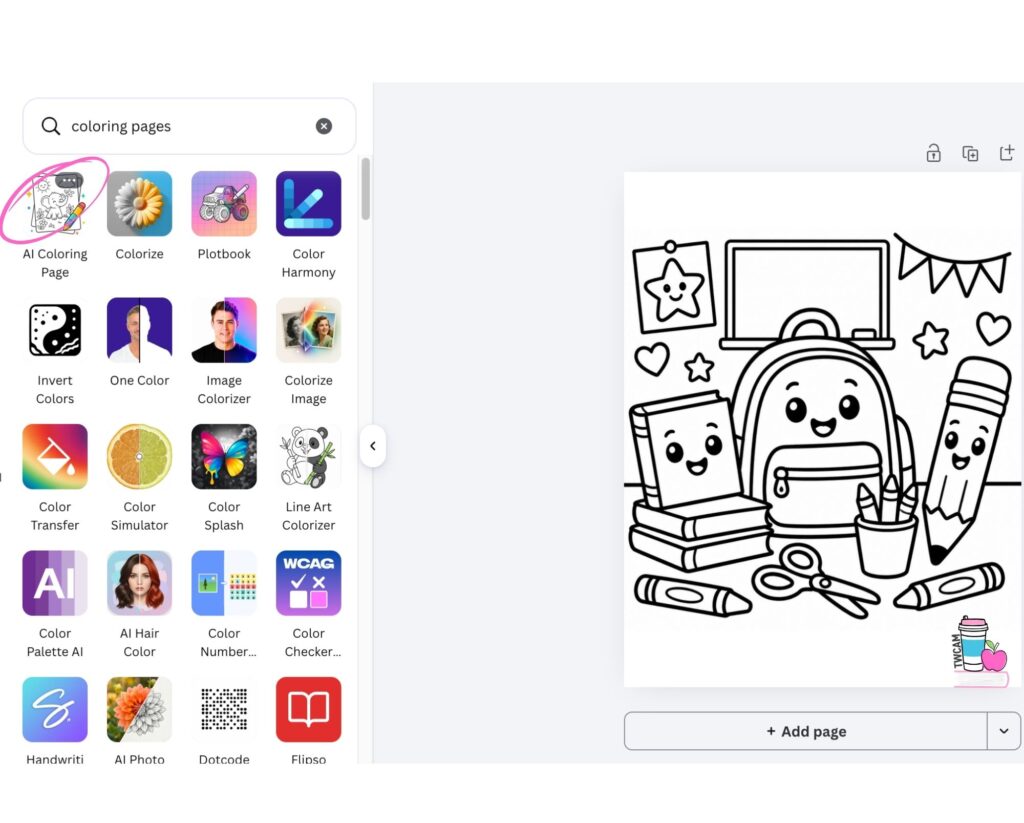
Go to the AI Coloring Pages app, type in your prompt, and instantly create a coloring page. You can even add text.
These work great for math centers, fast finishers, or calming corner activities. Just keep in mind you get one coloring book credit per day unless you purchase more, so planning ahead helps.
Canva Hack #4: Search Elements by Color
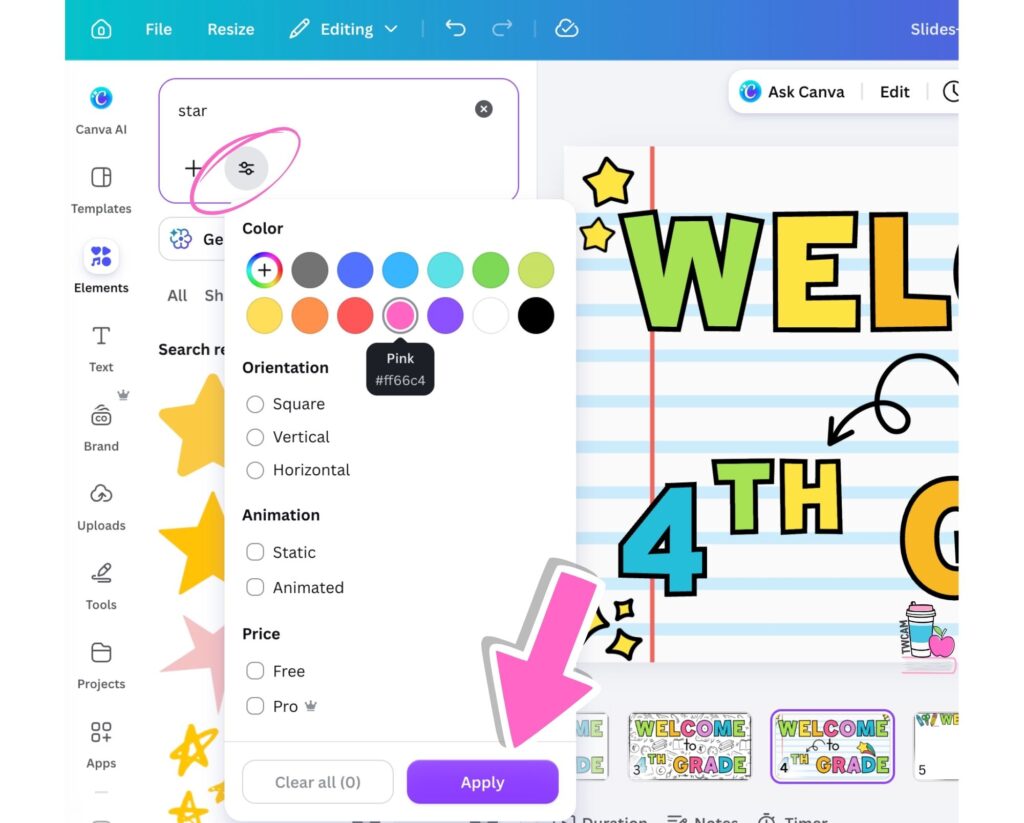
When searching for elements, use the color filter. Want all your clip art in pastel pink? Done.
You can even search by hex code to get an exact color match. This saves you from scrolling through thousands of random graphics.
Canva Hack #5: Use Your Phone as a Remote
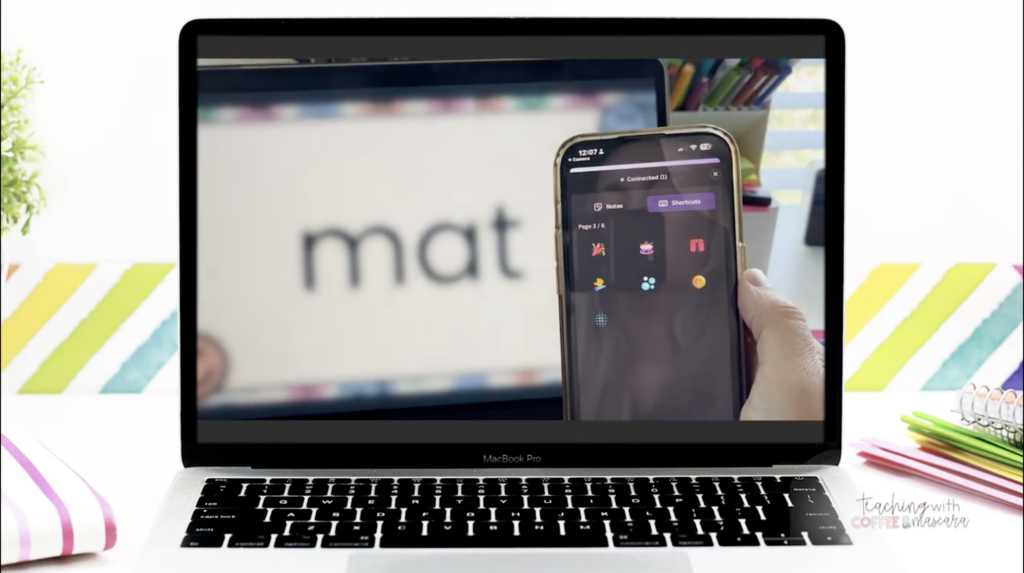
When presenting slides, you can use the Canva app on your phone as a remote.
Open your slides in full-screen present mode, click the three dots, select share remote control, and scan the QR code with your phone. You’ll need the Canva app downloaded and logged in.
From your phone, you can move slides forward or backward and use shortcuts like blur or confetti, all while standing anywhere in the classroom.
Canva Hack #6: Bulk Create Templates
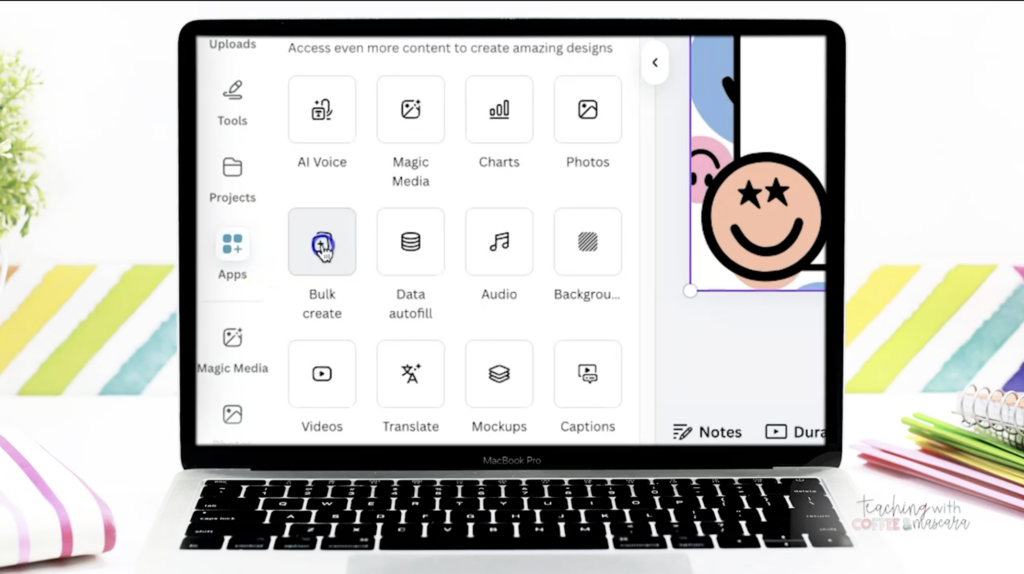
The app Bulk Create is a game changer.
It allows you to upload a list of student names, sight words, or text into Canva, connect the data to a template, and let Canva generate multiple designs automatically. This saves you from typing everything by hand.
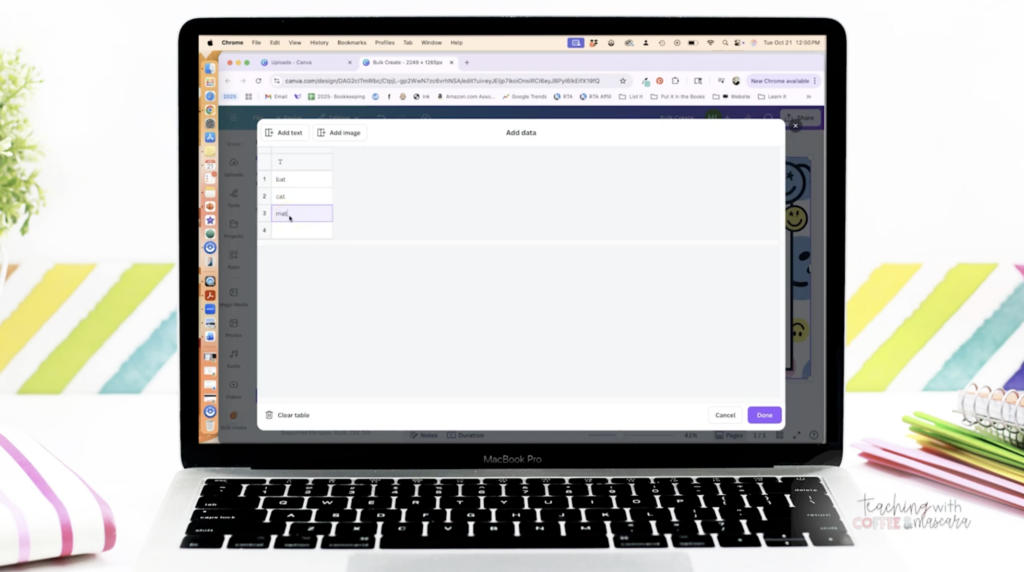
This app is one that is really hard to show with just pictures alone. To see how it fully works, scroll back up and watch the Youtube video.
Canva Hack #7: Tidy Up for Instant Organization
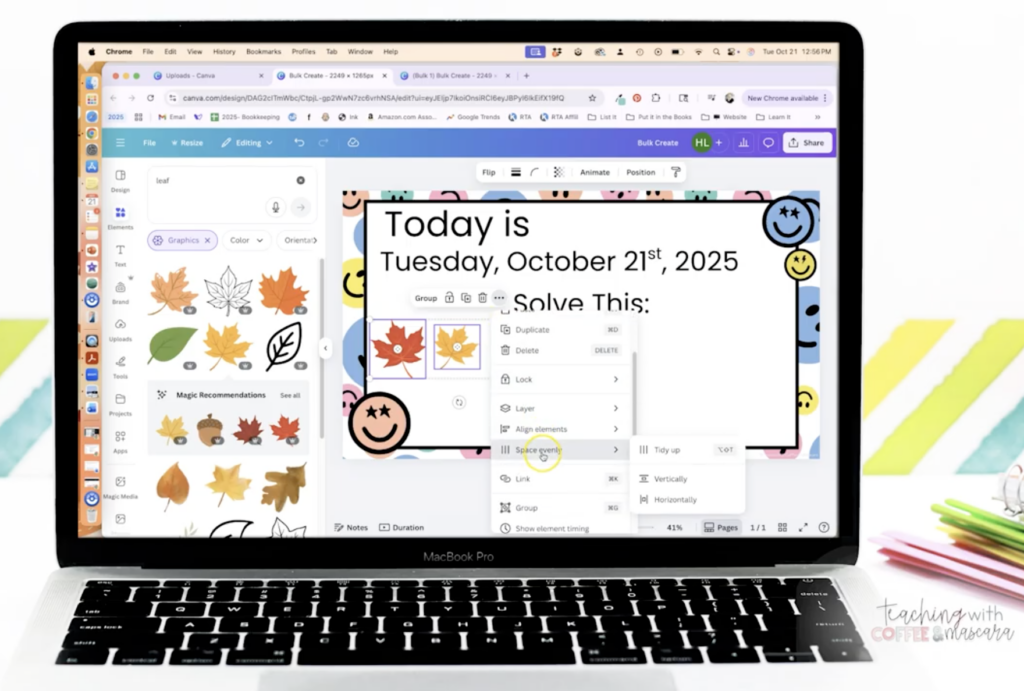
If your slide looks like spaghetti with text boxes everywhere, use the tidy up feature.
One click and Canva lines everything up neatly. Instant organization and a more polished look.
To use the tidy up feature, you will need to select all the elements, right click, scroll down to space evenly, to find TIDY UP.
Canva Hack #8: Presentation Magic Shortcuts
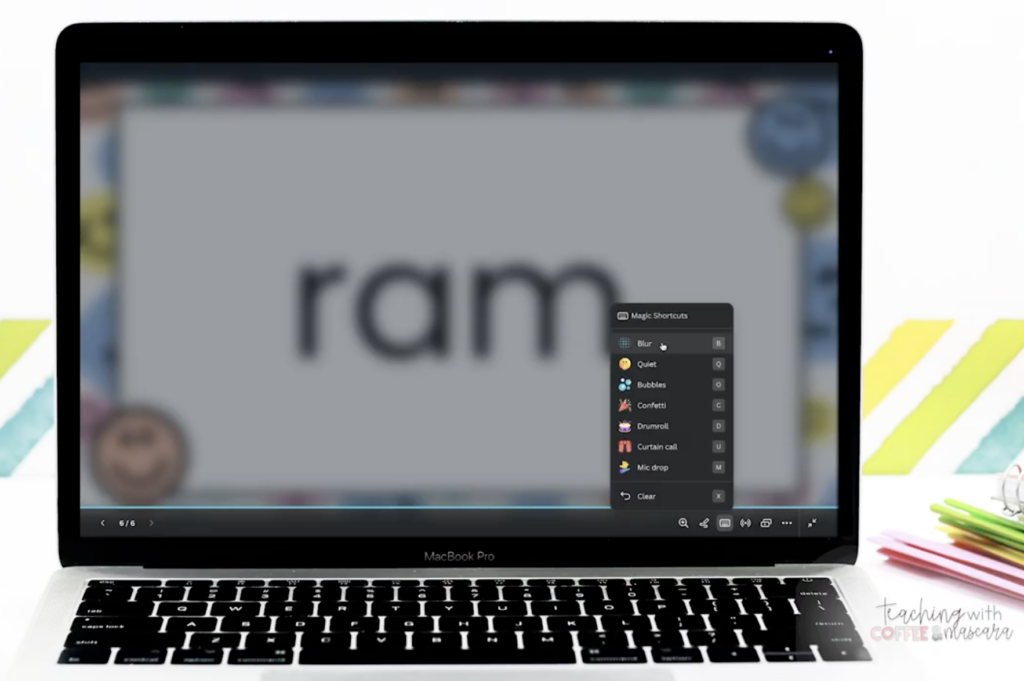
While presenting, you can use magic shortcuts to keep students engaged.
Press D for a drumroll, C for confetti, and B for blur. These shortcuts add fun without adding extra work.
Canva Hack #9: Magic Write
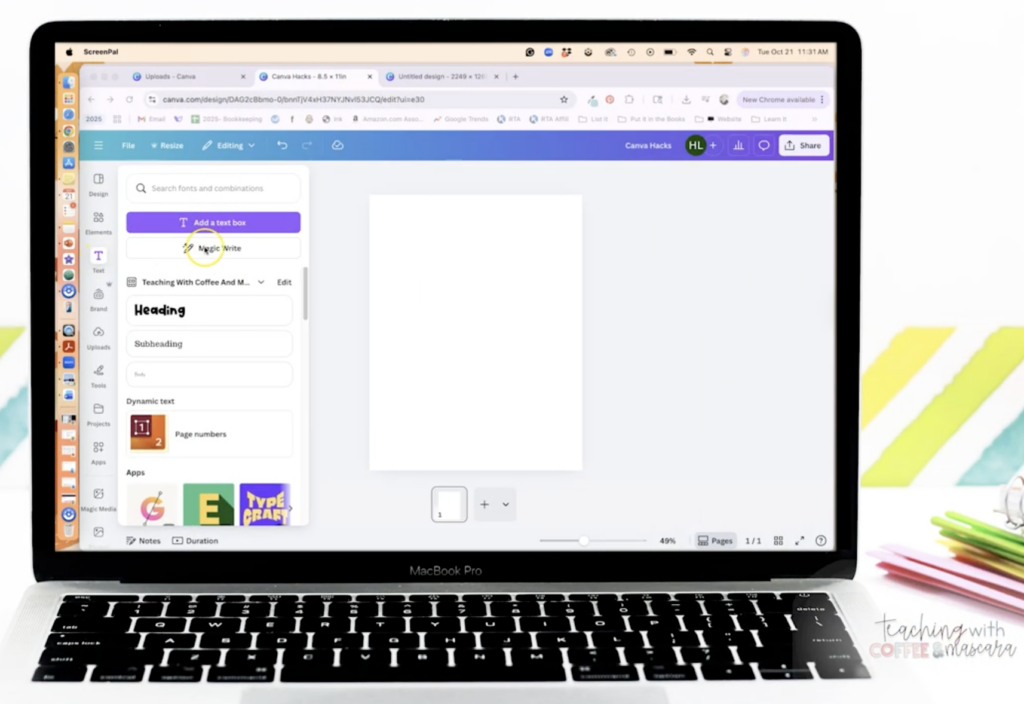
Magic Write generates text right inside Canva.
It’s great for writing prompts, picture prompts, or anchor chart wording. No need to leave Canva. It’s like having an assistant just for brainstorming.
Canva Hack #10: Magic Media Images
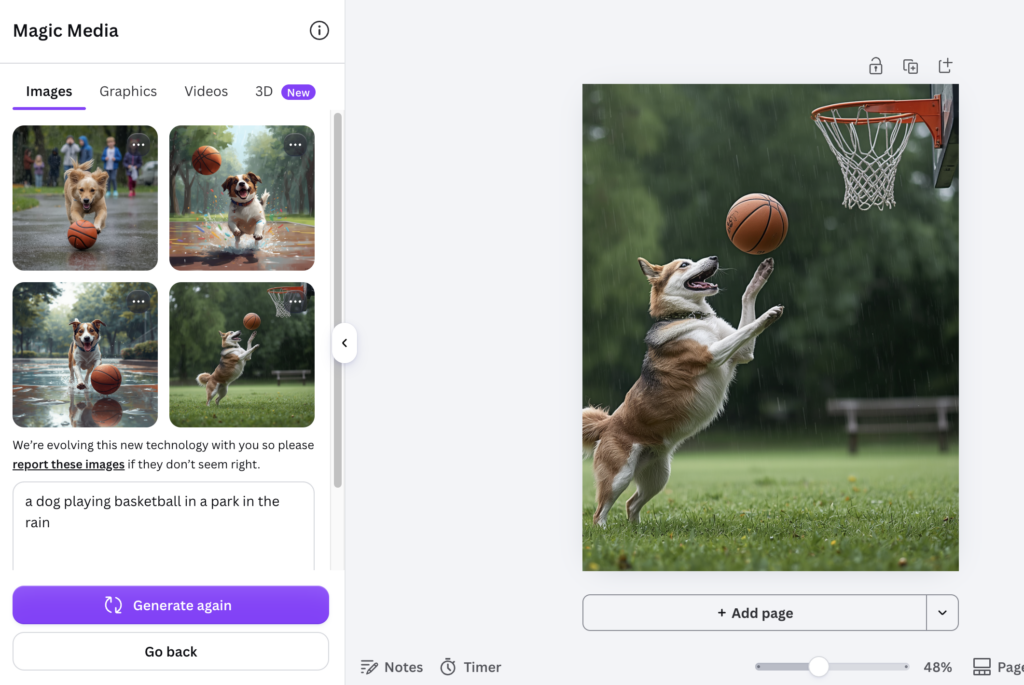
Magic Media, previously called Dreamlab, lets you generate custom images in seconds.
You can create images for writing prompts, like a dog playing basketball, and choose styles like cartoon, hand-drawn, watercolor, or vibrant. If you need ideas, Magic Write pairs perfectly with this feature. I love to use these images for a fun writing center.
Final Thoughts on Using Canva in the Classroom
That’s it. Ten Canva hacks that can seriously make your teaching life easier.
Some are time savers. Some make your resources look better. And some make your classroom more fun, which means more engaged students.
For more Canva tutorials, check out these posts:
Save These Canva Tips for Teachers
Save this post so you can come back to these Canva tips whenever you need them! Just pin it to one of your favorite teaching boards on Pinterest so it’s easy to find the next time you’re creating classroom resources, posters, or bulletin board materials.